LAG IDs, physical ports, and VLAN values are shown with environment-neutral placeholders. Replace <LAG_ID>, <PORT_1>, <PORT_2>, <NATIVE_VLAN>, and <VLAN_LIST> with values that match your own design.
01 / GOAL
Goal
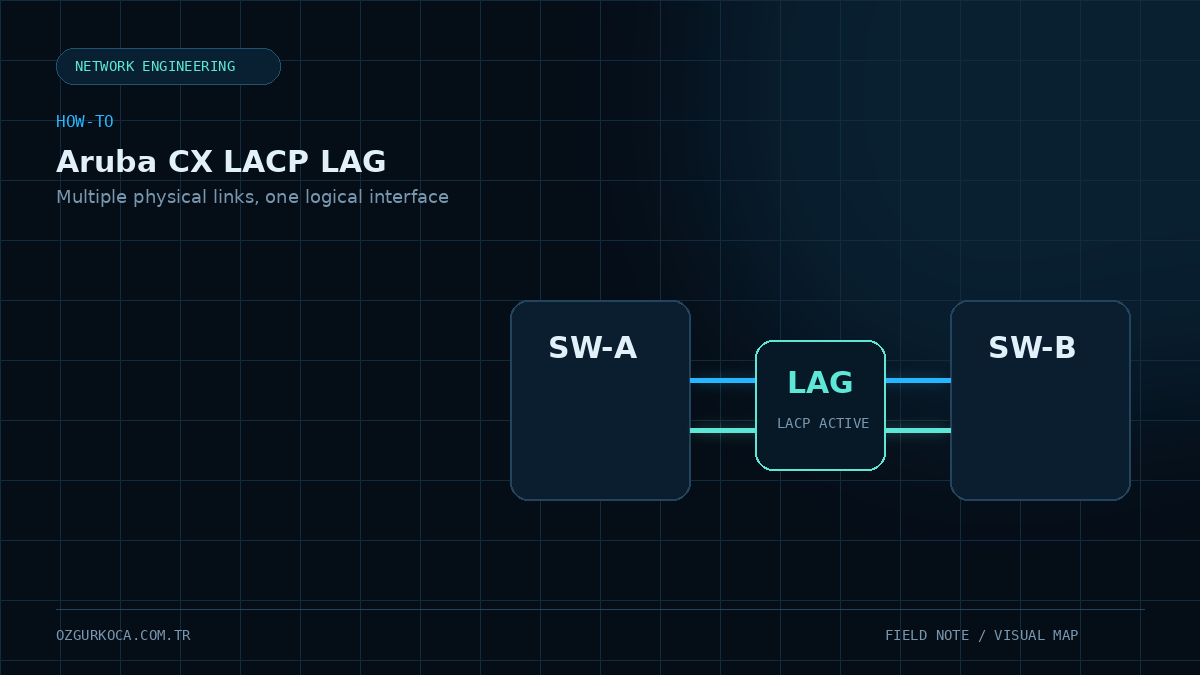
The goal is to combine two or more physical Ethernet links on Aruba CX into a single logical LAG (Link Aggregation Group) interface using LACP (Link Aggregation Control Protocol).
This design helps provide link redundancy and allows multiple physical links to operate as one logical connection.
Aruba CX A                         Peer Device
-----------                        -----------
<PORT_1> ------------------------ <PEER_PORT_1>
<PORT_2> ------------------------ <PEER_PORT_2>
      \                              /
       \                            /
        +------ LACP / LAG --------+
02 / PREREQUISITES
Prerequisites
Before starting the configuration, define the following values:
| Placeholder | Description |
|---|---|
<LAG_ID> | LAG number to create |
<PORT_1> | First physical interface to add to the LAG |
<PORT_2> | Second physical interface to add to the LAG |
<NATIVE_VLAN> | Native VLAN on the trunk |
<VLAN_LIST> | VLAN or VLAN list allowed on the trunk |
AOS-CX command availability may vary slightly by switch family and software release. In Layer 2 LAG examples, some platforms use no routing while others may not require it. Check the AOS-CX documentation for the exact model before applying the configuration.
03 / 1. CREATE THE LAG INTERFACE
1. Create the LAG Interface
First, create the logical LAG interface.
configure terminal

interface lag <LAG_ID>
    no shutdown
    no routing
    lacp mode active
    exit
The key commands are:
interface lag <LAG_ID>→ creates the logical LAG interface or enters the existing LAG interface.no shutdown→ administratively enables the LAG interface.no routing→ prepares the interface for Layer 2 operation. Verify platform support.lacp mode active→ actively initiates LACP negotiation.
04 / 2. ADD PHYSICAL PORTS TO THE LAG
2. Add Physical Ports to the LAG
Associate each member port with the same LAG ID.
interface <PORT_1>
    no shutdown
    lag <LAG_ID>
    exit

interface <PORT_2>
    no shutdown
    lag <LAG_ID>
    exit
Logical view:
<PORT_1> ----\
              +---- LAG <LAG_ID>
<PORT_2> ----/
Keeping VLAN and trunk configuration on the logical LAG interface instead of repeating it on every member port makes the configuration easier to read and manage.
05 / 3. CONFIGURE THE LAG AS A TRUNK
3. Configure the LAG as a Trunk
If the LAG must carry multiple VLANs, apply the trunk configuration on the LAG interface.
interface lag <LAG_ID>
    vlan trunk native <NATIVE_VLAN>
    vlan trunk allowed <VLAN_LIST>
    exit
A controlled production design normally permits only the VLANs that are actually required:
vlan trunk allowed <VLAN_LIST>Allowing all VLANs may be technically possible, but explicitly limiting the VLAN set is usually easier to control and audit.
For the native VLAN to be forwarded, it must also be present in the allowed VLAN list. AOS-CX documentation explicitly describes this behavior for LAG trunk interfaces.
06 / 4. LACP ACTIVE AND PASSIVE MODES
4. LACP Active and Passive Modes
LACP has two primary operating modes:
ActiveThe device actively sends LACP packets and initiates negotiation.
PassiveThe device waits for LACP packets from the peer.
Common valid combinations are:
Active  <--> Active
Active  <--> Passive
If both sides are configured as passive, neither side initiates negotiation, so the LACP LAG does not form.
07 / 5. COMPLETE EXAMPLE CONFIGURATION
5. Complete Example Configuration
Environment-neutral example:
configure terminal

interface lag <LAG_ID>
    no shutdown
    no routing
    lacp mode active
    vlan trunk native <NATIVE_VLAN>
    vlan trunk allowed <VLAN_LIST>
    exit

interface <PORT_1>
    no shutdown
    lag <LAG_ID>
    exit

interface <PORT_2>
    no shutdown
    lag <LAG_ID>
    exit
The peer device must also place the corresponding physical links in the same logical aggregate and use compatible LACP settings.
08 / 6. VALIDATE THE CONFIGURATION
6. Validate the Configuration
A basic command for checking LACP state is:
show lacp interfacesTo review aggregate information:
show lacp aggregatesTo inspect a specific LAG:
show lacp aggregates lag<LAG_ID>You can also review interface state with:
show interface briefand inspect the LAG interface directly with:
show interface lag <LAG_ID>09 / 7. TROUBLESHOOTING CHECKLIST
7. Troubleshooting Checklist
If LACP does not form as expected, verify the following in order:
Are the physical links Up?
        |
        v
Are the ports assigned to the correct LAG?
        |
        v
Is the peer using LACP?
        |
        v
Is the Active / Passive combination valid?
        |
        v
Are member-port speed and basic link settings compatible?
        |
        v
Do Native and Allowed VLANs match on both sides?
        |
        v
What does show lacp interfaces report?
In AOS-CX show lacp interfaces output, the collecting and distributing states are useful indicators of whether a member link can receive and forward traffic as part of the aggregate.
10 / CONCLUSION
Conclusion
Creating an LACP-based LAG on Aruba CX comes down to three main steps:
- 01
Create the logical
laginterface. - 02
Configure
lacp mode activeor another LACP mode that matches the design. - 03
Add the physical member ports to the LAG.
If VLAN configuration is required, apply the trunk or access settings to the logical LAG interface.
This approach combines physical links under a single logical connection and provides both link redundancy and a more flexible uplink design.
---
How-To ID: HT-003 Platform: Aruba CX / AOS-CX Status: Technical configuration guide
Was this article useful?
Leave a quick signal. Feedback is used to improve existing guides and decide what deserves deeper coverage.