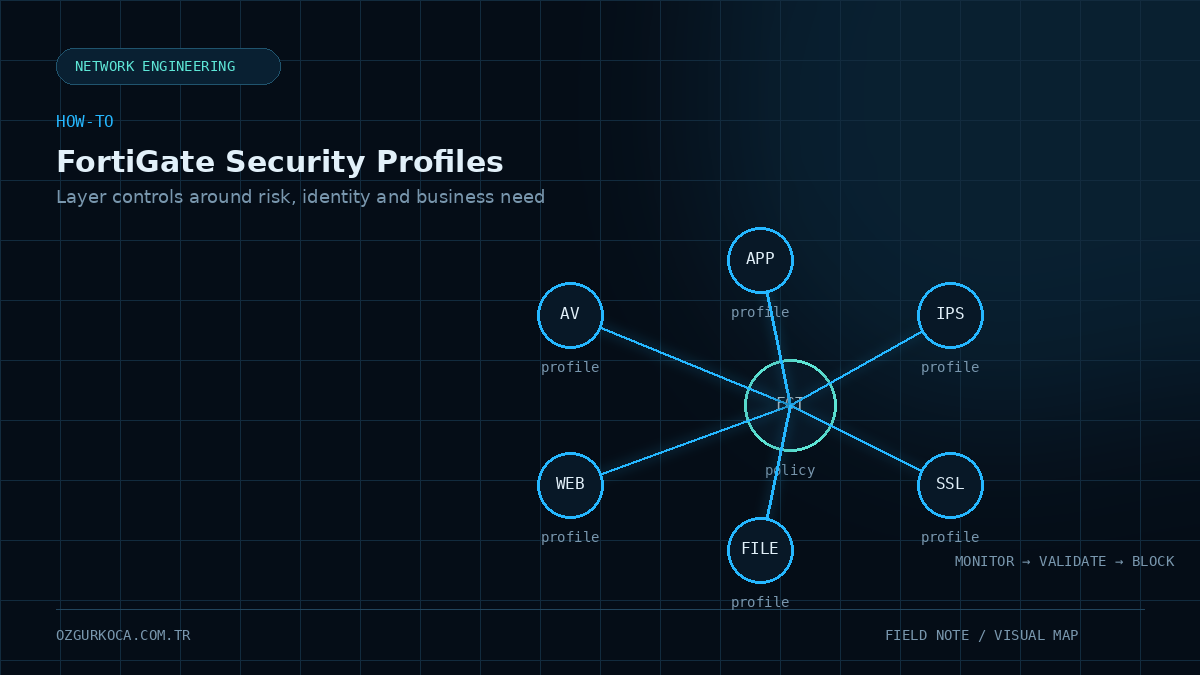
This guide is derived from a real Security Profile design exercise, but organization, user, department, domain, IP, policy, and profile identifiers have been anonymized. The actions shown here are not a universal template; they are an example of balancing security risk with legitimate business requirements.
01 / GOAL
Goal
The objective of FortiGate Security Profile design is not to Block as many categories as possible. A good design improves security without unnecessarily breaking business workflows, makes the purpose of each profile clear, and remains understandable months later during troubleshooting or audit work.
This guide treats the following controls as one architecture:
User / Role
    |
    v
Firewall Policy
    |
    v
Security Profile Group
    |
    +-- Antivirus
    +-- Web Filter
    +-- Application Control
    +-- IPS
    +-- SSL Inspection
    +-- File Filter
    +-- DNS Filter
The example design is based on Proxy-Based Inspection. Menu structure, category names, available controls, and some CLI options can vary by FortiOS release and license state, so production behavior should always be validated against the deployed release.
02 / 1. FIRST DECISION: ONE PROFILE FOR EVERYONE?
1. First Decision: One Profile for Everyone?
Applying one Security Profile set to every user is easy to manage, but users with different business requirements can end up either over-restricted or unnecessarily exposed.
For example:
- a standard office user may have little need to download executables,
- a technical team may need vendor tools or installers,
- IT administrators may legitimately require remote-access applications,
- remote/VPN traffic may require a different SSL inspection strategy.
A useful decision model is:
Risk
  +
Business Requirement
  +
User Role
  +
Traffic Type
  +
Observability
  =
Security Profile Decision
The key principle is that a different profile should represent a real difference in behavior. Keep common controls consistent and introduce variation only where a legitimate use case requires it.
03 / 2. EXAMPLE ROLE CLASSES
2. Example Role Classes
Instead of exposing real department names, the design can be represented with neutral role classes:
| Role | Typical requirement | Security approach |
|---|---|---|
| Standard User | Web, email, SaaS, documents | More restrictive file and application controls |
| Business User | Web, meetings, social/business platforms | Controlled flexibility for business categories |
| Technical User | Vendor tools, installers, technical portals | More download visibility with controlled access |
| IT Administrator | Remote access, administration tools, software downloads | Broader access with strong logging |
| Remote/VPN User | Remote connectivity | Separate SSL inspection and access evaluation |
The exact role names do not need to appear in firewall policy names. Their purpose is to force the design to answer a simple question: who genuinely needs which control?
04 / 3. NAMING STANDARD
3. Naming Standard
A Security Profile name should be more than unique; an engineer should be able to identify its role and function at a glance.
Example:
FW-<ROLE>-AV
FW-<ROLE>-WEB
FW-<ROLE>-APP
FW-<ROLE>-IPS
FW-<ROLE>-SSL
FW-<ROLE>-FILE
FW-<ROLE>-DNS
FW-<ROLE>-GROUP
For example:
FW-STANDARD-WEB
FW-TECHNICAL-FILE
FW-IT-APP
This makes policy reviews and troubleshooting much easier.
05 / 4. ANTIVIRUS: START WITH A COMMON BASELINE
4. Antivirus: Start with a Common Baseline
Antivirus behavior does not always need to vary by department. A shared malware-protection baseline can be defined first.
In the example design, malware detection on common protocols used a Block action:
HTTP   -> Block
FTP    -> Block
SMTP   -> Block
POP3   -> Block
IMAP   -> Block
The design also enabled:
- Machine Learning based detection,
- Grayware detection,
- treatment of executable content carried through email as high-risk content,
- Proxy-Based inspection behavior.
A strong shared Antivirus baseline reduces unnecessary configuration drift. Department-specific variation should be introduced only when there is a real operational requirement.
06 / 5. WEB FILTER: A BUSINESS POLICY, NOT JUST A BLOCK LIST
5. Web Filter: A Business Policy, Not Just a Block List
A useful Web Filter model has two layers:
- 01
common high-risk categories for all users,
- 02
business-use categories that vary by role.
5.1. Common blocked categories
The example design restricted the following categories for all user groups:
Games             -> Block
Peer-to-Peer      -> Block
Domain Parking    -> Block
Cryptocurrency    -> Block
Clearly malicious and phishing-oriented categories are also part of the common security baseline.
5.2. Role-dependent categories
The following categories were handled according to business role instead of using one global action:
- Remote Access
- AI services
- Streaming
- Social Media
- Shopping
- Travel
- Job Search
- File Sharing
- Software Download
- Online Meeting
A good example is the Remote Access category:
IT Administrator  -> Monitor
Other roles       -> Block
IT administrators may legitimately need remote-management tools, while making the same category broadly available to standard users can create unnecessary exposure.
Where appropriate, allowed categories can use a Monitor + Log approach instead of an unobserved allow decision. This keeps usage visible while preserving the business workflow.
Web categories evolve over time, and the same cloud service may use multiple domains or categories. Category actions should therefore be reviewed together with logs and real user behavior.
07 / 6. APPLICATION CONTROL: VISIBILITY BEFORE ENFORCEMENT
6. Application Control: Visibility Before Enforcement
Application Control should not be viewed only as an application-blocking feature. During rollout it is also a valuable source of usage visibility.
Common actions in the example design were:
P2P                 -> Block
Proxy / Anonymizer  -> Block
Games               -> Block
Role-based differences included:
Remote Access
  IT Administrator  -> Monitor
  Other roles       -> Block

Social Media
  Selected business roles -> Monitor
  Other roles             -> more restrictive as required

Video / Audio
  Roles with a business need -> Monitor
  Other roles                -> restrict as required
Monitor is particularly useful during design validation: traffic continues to work while logs reveal which applications are actually in use.
08 / 7. IPS: BUILD THE BASELINE AROUND THREAT SEVERITY
7. IPS: Build the Baseline Around Threat Severity
Instead of creating heavily customized IPS sensors for every department, the design used a common strong baseline.
Example action model:
| Severity | Action |
|---|---|
| Critical | Block + Log |
| High | Block + Log |
| Medium | Block + Log |
| Low | FortiGuard/default behavior + Log |
Additional protections included:
Malicious URL  -> Block
Botnet C&C     -> Block
Packet logging was not kept permanently enabled and was reserved for controlled troubleshooting when deeper evidence was required.
Applying a broad IPS signature set directly in Block mode can introduce false positives or application compatibility issues. Critical production applications should be validated with logs and controlled testing before aggressive enforcement.
09 / 8. SSL INSPECTION: THE VISIBILITY LAYER FOR OTHER PROFILES
8. SSL Inspection: The Visibility Layer for Other Profiles
Most modern user traffic is encrypted with TLS, so Web Filter, Antivirus, and File Filter effectiveness cannot be considered independently from SSL inspection.
Simplified flow:
Client
   |
   | TLS
   v
FortiGate
   |
   | Inspection
   v
Internet Service
In the example design, most user groups used Full Deep Inspection, while remote/VPN traffic with a different trust relationship used a more limited Certificate Inspection model.
Deep Inspection design items included:
- deploying a trusted inspection CA to endpoints,
- expecting TLS 1.2 or later,
- defining behavior for invalid, expired, revoked, and untrusted certificates,
- validating SNI handling,
- reviewing QUIC / HTTP3 inspection behavior,
- using controlled exemptions where justified.
Example exemption categories included:
Finance / Banking
Health and Wellness
Personal Privacy
These exemptions are not universal. Technical requirements, privacy policy, regulation, and application compatibility need to be evaluated together.
Why QUIC requires separate attention
HTTP/3 can run over QUIC, typically using UDP/443:
Browser
   |
   v
HTTP/3 / QUIC
   |
   v
UDP/443
A design that only considers classic TCP/443 may not provide the expected inspection behavior. Validate how the deployed FortiOS release inspects or controls QUIC traffic.
10 / 9. FILE FILTER: MORE THAN A FILE EXTENSION LIST
9. File Filter: More Than a File Extension List
The most important File Filter design principle is not to block every file type blindly. File risk and legitimate business use both matter.
Example classification:
9.1. Executables and installers
exe
msi
dll
.net
9.2. Scripts and help content
bat
hta
chm
9.3. Archives
zip
rar
7z
9.4. Documents
pdf
doc / docx
xls / xlsx
ppt / pptx
Example role-based policy:
| File group | Standard User | Technical User | IT Administrator |
|---|---|---|---|
| EXE / MSI / DLL / .NET | Block | Monitor where installers are required | Monitor |
| BAT / HTA / CHM | Block | Block | Controlled evaluation |
| ZIP / RAR / 7z | Monitor | Monitor | Monitor |
| Password-protected archive | Block | Monitor | Monitor |
| Office / PDF | No blanket block | No blanket block | No blanket block |
For some technical teams, installer files were placed in Monitor while higher-risk script-oriented types remained Block. IT administrators received broader visibility for executable and installer traffic through Monitor rather than an unrestricted allow model.
Office and PDF files were not blanket-blocked. Their inspection was handled together with Antivirus and SSL Deep Inspection. This does not mean these formats are risk-free; it means business requirements did not justify a blanket deny.
Password-protected archives
Password-protected archives require special treatment because content inspection can be limited.
The example design used:
Standard User     -> Block
Technical User    -> Monitor
IT Administrator -> Monitor
Archive-content scanning remained enabled, and the password-protected archive rule was evaluated before the general archive Monitor rule.
Logical flow:
Password-protected archive?
        |
     Yes|------------------> dedicated action
        |
      No
        |
        v
General archive rule
        |
        v
Monitor / Log
11 / 10. DNS FILTER: UNDERSTAND THE DNS PATH FIRST
10. DNS Filter: Understand the DNS Path First
A DNS Filter profile should not be designed from category lists alone. First identify where the client DNS query actually travels.
For example, if endpoints use an internal DNS resolver instead of querying public DNS directly, the path may look like this:
Client
   |
   v
Internal DNS Resolver
   |
   v
FortiGate
   |
   v
Upstream DNS
In that design, attaching DNS Filter to an end-user policy does not automatically guarantee the expected visibility. The policy location and actual DNS flow must be validated.
Example common risk categories:
Malicious / Phishing
Botnet
P2P
Proxy Avoidance
Cryptocurrency
Potentially Unwanted Programs
Business-use categories can then vary by role.
12 / 11. SECURITY PROFILE GROUPS: KEEP POLICIES READABLE
11. Security Profile Groups: Keep Policies Readable
Instead of managing every individual profile separately on a firewall policy, role-specific controls can be collected into a Profile Group.
FW-STANDARD-GROUP
      |
      +-- FW-STANDARD-AV
      +-- FW-STANDARD-WEB
      +-- FW-STANDARD-APP
      +-- FW-STANDARD-IPS
      +-- FW-STANDARD-SSL
      +-- FW-STANDARD-FILE
Benefits include:
- policy standardization,
- lower risk of forgetting a required profile,
- easier audits,
- faster troubleshooting,
- clearer role-based change tracking.
Availability of specific profile types such as File Filter inside a Profile Group should be validated for the deployed FortiOS release.
13 / 12. COMMENTS STANDARD: DOCUMENT WHY THE PROFILE EXISTS
12. Comments Standard: Document Why the Profile Exists
A profile name does not always explain why it exists. Treat the comments field as part of the operational documentation standard.
A useful comment answers three questions:
PURPOSE  -> Why does this profile exist?
SCOPE    -> Which users or traffic does it protect?
ACTION   -> What does it primarily block or monitor?
Example comments:
Antivirus
Antivirus profile used to detect and block malicious content and known malware in corporate Internet and email traffic.Web Filter
Blocks malicious and policy-restricted web categories for this user role and logs permitted categories for usage visibility.Application Control
Blocks high-risk or policy-restricted applications and monitors permitted applications to maintain usage visibility.IPS
IPS profile used to detect and block known exploit and network attack attempts at Medium, High, and Critical severity levels.SSL Inspection
Inspects TLS traffic according to corporate policy so security profiles can analyze HTTPS content where permitted.File Filter
Blocks or logs high-risk executable, script, and password-protected archive files according to the user role.Comments should remain short enough to read quickly but descriptive enough for the next engineer to understand the reason for the profile.
14 / 13. ROLLOUT: MONITOR -> VALIDATE -> BLOCK
13. Rollout: Monitor -> Validate -> Block
Instead of introducing the strictest actions immediately in production, use a staged enforcement model where possible.
Monitor
   |
   v
Review logs
   |
   v
Validate real business use
   |
   v
Check false positives
   |
   v
Define justified exceptions
   |
   v
Block
This is particularly useful for:
- Application Control,
- business-use Web Filter categories,
- File Filter,
- broad IPS signature sets.
15 / 14. TROUBLESHOOTING ORDER
14. Troubleshooting Order
If a Security Profile is attached but the expected action does not occur, do not look at the profile in isolation.
Recommended order:
Is the correct firewall policy matching?
        |
        v
Is the policy Proxy-Based?
        |
        v
Is the expected Security Profile / Group attached?
        |
        v
Can SSL Inspection actually see the traffic?
        |
        v
Is there an exemption?
        |
        v
What do Web / App / AV / IPS / File logs show?
        |
        v
What category or signature result is being returned?
        |
        v
Does client behavior match what the firewall logs show?
For a real example where Proxy-Based Web Filter behavior required deeper analysis beyond the category policy, see [FortiGate Proxy-Based Web Filter: Why Are Specific Domains Not Being Blocked?](../troubleshooting/fortigate-proxy-based-web-filter-domain-match.html).
16 / 15. PRE-DEPLOYMENT / CHANGE CHECKLIST
15. Pre-Deployment / Change Checklist
[ ] User and role groups are classified by real business need
[ ] Firewall policies are confirmed to use Proxy-Based inspection
[ ] A common Antivirus baseline is defined
[ ] Common Web Filter block categories are defined
[ ] Business categories are separated by role using Monitor / Block
[ ] P2P / Anonymizer / Games policy is validated in Application Control
[ ] Remote Access is available only to roles that require it
[ ] IPS Critical / High / Medium behavior is tested
[ ] CA trust is validated on endpoints using Deep Inspection
[ ] Certificate Inspection vs Deep Inspection design is reviewed
[ ] QUIC / HTTP3 behavior is tested
[ ] File Filter executable and script policy is validated
[ ] Password-protected archive rule order is verified
[ ] The real DNS traffic path is confirmed
[ ] Profile Group bindings are reviewed
[ ] Every profile has a meaningful comment
[ ] Logs from the Monitor phase are reviewed
[ ] False positives and business-critical exceptions are validated
[ ] A rollback plan exists for the change
17 / 16. CORE DESIGN PRINCIPLES
16. Core Design Principles
The main lessons from this design are:
- 01
The goal is not to create a different profile for every department. Differences should come from genuine business requirements.
- 02
Keep the shared baseline strong. Unnecessary variation in controls such as Antivirus and IPS makes operations harder.
- 03
Monitor is not weak security. Used correctly, it provides visibility and supports safer enforcement decisions.
- 04
Deep Inspection is not an isolated setting. It directly affects Web, Antivirus, and File Filter visibility.
- 05
File Filter is not just a list of extensions. It should be designed around both file risk and user workflow.
- 06
Comments are operational documentation. They leave the reason for a profile directly on the device.
- 07
Troubleshoot policy and profile together. The correct profile on the wrong policy produces no useful outcome.
18 / CONCLUSION
Conclusion
Good FortiGate Security Profile design is less about blocking everything and more about applying the right control to the right user in a measurable, maintainable way.
A sustainable model is:
Common Security Baseline
          |
          v
Role-Based Differences
          |
          v
Monitor & Log
          |
          v
Validate
          |
          v
Controlled Block
          |
          v
Periodic Review
This model improves not only security but also policy review, auditability, troubleshooting, and future change management.
Before making large Security Profile changes, also review the behavior and known issues of the FortiOS release in use. For a risk-based approach to upgrades, see [FortiGate Firmware Upgrade Decision: Should You Upgrade Just Because a New Release Is Available?](../articles/fortigate-firmware-upgrade-decision.html).
---
How-To ID: HT-004 Platform: FortiGate / FortiOS Status: Security Profile design and implementation guide
Was this article useful?
Leave a quick signal. Feedback is used to improve existing guides and decide what deserves deeper coverage.