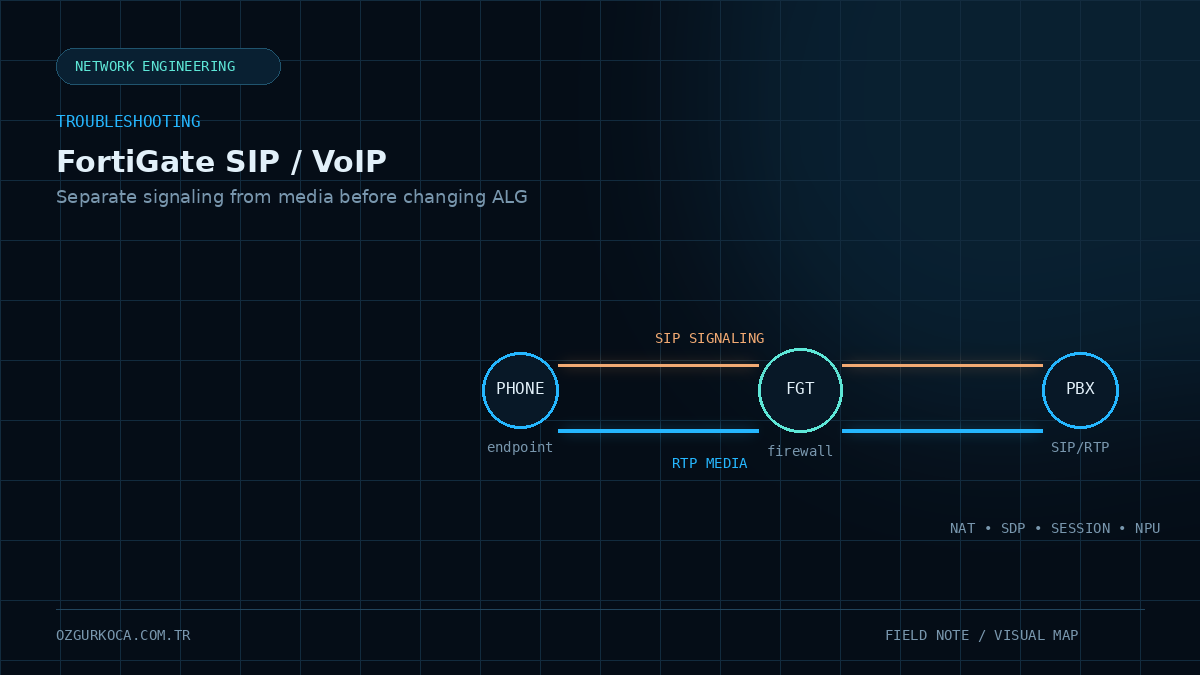
This article is based on the analysis approach used in real VoIP troubleshooting cases. PBX names, SIP providers, IP addresses, firewall-policy names, and environment identifiers have been removed from the published version.
01 / PROBLEM
Problem
After a FortiGate is introduced, upgraded, or modified on the policy carrying SIP/VoIP traffic, one or more of the following symptoms may appear:
One-way audio

Call drops after roughly 32 seconds

SIP REGISTER does not complete as expected
A common first reaction is:
Disable SIP ALGBut the problem does not always end there.
Changing one GUI option without confirming which mechanism is actually processing the SIP session can lead to an incomplete diagnosis.
The first SIP troubleshooting question should not be “Is ALG enabled?” but “Which mechanism is processing this SIP session right now?”
02 / SEPARATE SIP SIGNALING FROM RTP FIRST
Separate SIP Signaling from RTP First
Treating VoIP as one single traffic flow makes troubleshooting harder.
Simplified view:
                SIP Signaling
PBX -------------------------------- SIP Provider
 |          REGISTER / INVITE / ACK       |
 |                                         |
 |                                         |
 +--------------- RTP Media ---------------+
              Voice packets
SIP signaling normally handles call setup and state.
RTP carries the media stream.
That means:
Call establishes but audio is one-wayand:
Call never establishesare not the same problem.
03 / WHAT DO THE SYMPTOMS TELL US?
What Do the Symptoms Tell Us?
One-Way Audio
If the call is established but audio works in only one direction, start with the RTP media path.
Review:
IP address advertised in SDP
RTP ports
NAT translation
Return path
Firewall policy
VIP / DNAT
SDP changes made by SIP ALG
Successful SIP signaling does not prove that RTP is flowing correctly.
Call Drops Around 32 Seconds
A call dropping at roughly 32 seconds is an important clue.
If the packet capture looks like this:
INVITE
   ↓
200 OK
   ↓
200 OK retransmission
   ↓
200 OK retransmission
   ↓
ACK missing / sent to the wrong place
focus on the SIP signaling path and NAT behavior.
This symptom does not automatically mean “SIP ALG bug,” but a missing ACK or address information that remains incorrect after NAT are strong candidates.
REGISTER Problems
When REGISTER fails, compare the full path:
PBX
 |
 | REGISTER
 v
FortiGate
 |
 | NAT
 v
SIP Provider
 |
 | Response
 v
FortiGate
 |
 v
PBX
Ask:
- Does REGISTER reach the FortiGate?
- Does it leave on the WAN side?
- Is source NAT using the expected IP/port?
- Does the provider response return?
- Does the response reach the correct internal host?
- Are private/public addresses in Contact or Via unexpectedly rewritten?
04 / HOW DOES FORTIGATE PROCESS SIP TRAFFIC?
How Does FortiGate Process SIP Traffic?
Two concepts are often confused on FortiGate:
SIP ALG
SIP Session Helper
They are not the same mechanism.
SIP ALG
In newer FortiOS releases, SIP ALG is the default and recommended SIP-inspection mechanism.
Simplified flow:
SIP packet
   ↓
SIP ALG / Proxy
   ↓
SIP + SDP inspection
   ↓
NAT / dynamic pinhole handling
SIP ALG can understand SIP and SDP at the application layer and can adjust NAT-related values when required.
SIP Session Helper
The session helper is an older mechanism that operates in the kernel path.
SIP packet
   ↓
Kernel Session Helper
   ↓
Basic SIP / RTP NAT assistance
In modern FortiOS designs, session-helper should generally be considered a legacy compatibility mechanism.
NPU offloading and SIP session-helper are not the same thing. Session-helper is a SIP assistance mechanism in the kernel path; NPU is a separate hardware-acceleration path for eligible traffic.
05 / 1. IDENTIFY WHICH SIP MECHANISM IS ACTIVE
1. Identify Which SIP Mechanism Is Active
This is the most important step in the troubleshooting process.
Start by checking the system setting:
show full system settings | grep default-voip-alg-modeIn general:
proxy-basedpoints toward SIP ALG, while:
kernel-helper-basedpoints toward session-helper processing.
But this single line is not enough.
A VoIP profile applied to the firewall policy can change actual processing behavior.
For that reason, also inspect the session table.
Filter by SIP port, provider, or PBX as appropriate:
diagnose sys session filter clear
diagnose sys session filter dport 5060
diagnose sys session list
If necessary, check the source-port side too:
diagnose sys session filter clear
diagnose sys session filter sport 5060
diagnose sys session list
Fields such as helper=sip, redir, local, or other ALG/helper indicators can provide clues about which mechanism is actually active for that session.
06 / 2. DO NOT GUESS THE SESSION HELPER ID
2. Do Not Guess the Session Helper ID
A common mistake is to run:
delete 13because some examples show SIP helper with ID 13.
That ID is not guaranteed to be the same on every FortiGate.
Check the actual helper table first:
config system session-helper
show
end
Look for an entry similar to:
edit <SIP_HELPER_ID>
    set name sip
    set protocol 17
    set port 5060
next
If the helper is going to be removed, verify the real ID first.
Do not delete a session-helper entry simply because many examples online use ID 13. Confirm that the entry is actually the SIP helper on the device you are troubleshooting.
07 / 3. WHAT DOES `SIP-NAT-TRACE` DO — AND NOT DO?
3. What Does sip-nat-trace Do — and Not Do?
This setting is often misunderstood.
set sip-nat-trace disableis not the primary on/off switch for SIP ALG or session-helper.
sip-nat-trace controls behavior related to tracking original SIP source information during NAT when session-helper is used.
Therefore:
sip-nat-trace disabledoes not mean:
SIP inspection is completely disabledThis distinction is especially important when working from older troubleshooting notes.
08 / 4. IF THE GOAL IS TO RUN WITHOUT SIP INSPECTION
4. If the Goal Is to Run Without SIP Inspection
Some PBX or SIP-provider designs may require FortiGate to avoid rewriting SIP payloads.
The intended design may then be:
FortiGate does not modify SIP/SDP
        |
        v
SIP + RTP pass through normal firewall/NAT policy
But this has an important consequence:
If SIP ALG or session-helper is no longer creating dynamic RTP pinholes/expectations, the required SIP and RTP ports must be explicitly handled by the firewall/NAT design.
Review:
SIP signaling ports
RTP UDP port range
VIP / DNAT
Source NAT
Bidirectional policy
Return routing
PBX RTP port range
Provider expectations
Before testing a fully inspection-free design:
- 01
Confirm whether a VoIP profile is applied to the policy.
- 02
Identify the active ALG mode.
- 03
Review the session-helper table.
- 04
Test with a new SIP session after making the change.
In production, this should be performed with change control and a rollback plan.
09 / 5. COMPARE PACKET CAPTURE BEFORE AND AFTER NAT
5. Compare Packet Capture Before and After NAT
Configuration review alone is not enough for SIP troubleshooting.
Capture from the PBX side:
diagnose sniffer packet any 'host <PBX_IP>' 6 0 lCapture from the provider side:
diagnose sniffer packet any 'host <SIP_PROVIDER_IP>' 6 0 lFor signaling only:
diagnose sniffer packet any 'host <PBX_IP> and port 5060' 6 0 lThe goal is to compare the same SIP message on both sides of the FortiGate.
For example:
LAN-side REGISTER
        |
        v
     FortiGate
        |
        v
WAN-side REGISTER
Compare:
- Source IP / port
- Destination IP / port
- Contact
- Via
- SDP connection address
- SDP media port
10 / 6. CAPTURE RTP SEPARATELY FOR ONE-WAY AUDIO
6. Capture RTP Separately for One-Way Audio
If SIP signaling looks healthy, move to RTP.
Simplified checks:
Remote RTP
    |
    v
FortiGate
    |
    v
PBX
and the reverse direction:
PBX
 |
 v
FortiGate
 |
 v
Remote RTP
If one direction is missing, review:
RTP port range
NAT
VIP
Return route
Advertised IP in SDP
Advertised media port in SDP
Firewall session
If SIP inspection is fully disabled, do not expect FortiGate to automatically create RTP expectations/pinholes.
11 / 7. HOW TO READ A 32-SECOND CALL DROP
7. How to Read a 32-Second Call Drop
Packet capture is extremely valuable when calls drop around 32 seconds.
Example problem flow:
PBX                  Provider
 |                       |
 |------- INVITE ------->|
 |<------ 200 OK --------|
 |                       |
 |       ACK ?           |
 |                       |
 |<------ 200 OK --------|
 |<------ 200 OK --------|
 |                       |
 |------ Call Drop ------|
Focus on:
Where is the ACK going?
Is the Contact header correct?
Is the Via information correct?
Is the signaling path symmetric after NAT?
A roughly 32-second drop is a strong signaling clue, but it is not a root cause by itself.
12 / 8. DO NOT BLAME NPU OFFLOADING BY DEFAULT
8. Do Not Blame NPU Offloading by Default
FortiGate can offload eligible sessions to NP/NPU hardware.
An important troubleshooting consequence is:
Offloaded traffic may not appear in the normal packet sniffer exactly as expected.
So if a capture looks incomplete, do not immediately conclude:
FortiGate is dropping the packetIf necessary, disable offload only on the affected firewall policy and only for the duration of a controlled test:
config firewall policy
    edit <POLICY_ID>
        set auto-asic-offload disable
    next
end
Reproduce the call and capture traffic again.
Then restore the setting:
config firewall policy
    edit <POLICY_ID>
        set auto-asic-offload enable
    next
endDo not use auto-asic-offload disable as a permanent “VoIP fix.” Treat it primarily as a diagnostic visibility test. If the issue disappears only when offload is disabled, you now have concrete comparative data for deeper NPU/hardware-acceleration investigation with Fortinet Support.
13 / 9. CHECK SIP ALG / SESSION HELPER ACTIVITY
9. Check SIP ALG / Session Helper Activity
For session-helper activity:
diagnose sys sip statusFor SIP ALG statistics:
diagnose sys sip-proxy statsThe goal is to evaluate three sources together:
What does the configuration say?
        +
What does the session say?
        +
What do the counters say?
14 / SYSTEMATIC TROUBLESHOOTING FLOW
Systematic Troubleshooting Flow
A practical sequence for this type of VoIP issue is:
1. Classify the symptom
   |
   +-- REGISTER problem
   +-- Call setup problem
   +-- ~32 second drop
   +-- One-way audio
   |
   v
2. Separate SIP and RTP
   |
   v
3. Is SIP ALG or Session Helper active?
   |
   v
4. Check the session table
   |
   v
5. Compare LAN/WAN packet captures
   |
   v
6. Review NAT + SIP/SDP addresses
   |
   v
7. Validate RTP in both directions
   |
   v
8. If capture visibility is suspicious, test NPU offload
   |
   v
9. Validate with a new session after the change
15 / COMMON MISTAKES
Common Mistakes
“I disabled SIP ALG in the GUI, so FortiGate no longer touches SIP”
Not always true.
Verify the active SIP-processing mode from the actual session.
Assuming the Session Helper ID Is Fixed
delete 13is not correct for every device.
Check the helper table first.
Assuming sip-nat-trace disable Completely Disables Inspection
It does not serve as the main enable/disable switch for SIP inspection.
Opening Only UDP/5060
SIP signaling and RTP media are separate traffic flows.
If SIP inspection is disabled, the required RTP range may need to be explicitly handled in firewall/NAT policy.
Permanently Disabling NPU Offload
Offload should first be tested for troubleshooting visibility, not used as a default long-term fix.
Rebooting as the First Step
If you reboot before collecting the session table, packet capture, and active SIP-processing information, valuable evidence may be lost.
16 / DECISION TABLE
Decision Table
| Situation | First approach |
|---|---|
| SIP ALG active and provider supports it | Review ALG / VoIP profile behavior |
| Provider explicitly requires no ALG | Validate inspection-free NAT/RTP design |
| Session-helper unexpectedly active | Verify the actual helper ID and policy behavior |
| One-way audio | Compare RTP + SDP + NAT flow |
| Call drops around 32 seconds | Review ACK / 200 OK / Contact / Via flow |
| REGISTER fails | LAN/WAN signaling capture + NAT/session analysis |
| Sniffer appears to miss traffic | Check NPU offload and run a controlled comparison if needed |
17 / VERIFICATION
Verification
Do not consider the problem solved simply because “the call connected.”
Use a broader checklist:
[ ] SIP REGISTER succeeds
[ ] INVITE reaches the correct destination
[ ] 200 OK returns
[ ] ACK reaches the correct destination
[ ] RTP flows in both directions
[ ] SDP IP/port values are correct
[ ] NAT translation is as expected
[ ] Call remains established beyond 32 seconds
[ ] Multiple test calls produce the same result
18 / CONCLUSION
Conclusion
The biggest mistake in FortiGate VoIP troubleshooting is reducing the entire problem to one “SIP ALG on/off” setting.
The real analysis chain is:
SIP Signaling
      +
Active SIP Inspection Mode
      +
Session Helper / ALG
      +
NAT
      +
SDP
      +
RTP Media
      +
Session Table
      +
Hardware Offload Visibility
The most useful approach is:
First prove how FortiGate is processing the SIP session. Then trace signaling, NAT, and RTP separately. Treat NPU offload as a controlled diagnostic comparison when needed, not as a default root-cause assumption.
This makes it possible to analyze one-way audio, REGISTER failures, and roughly 32-second call drops through the actual packet flow instead of attributing everything to a single setting.
Was this article useful?
Leave a quick signal. Feedback is used to improve existing guides and decide what deserves deeper coverage.