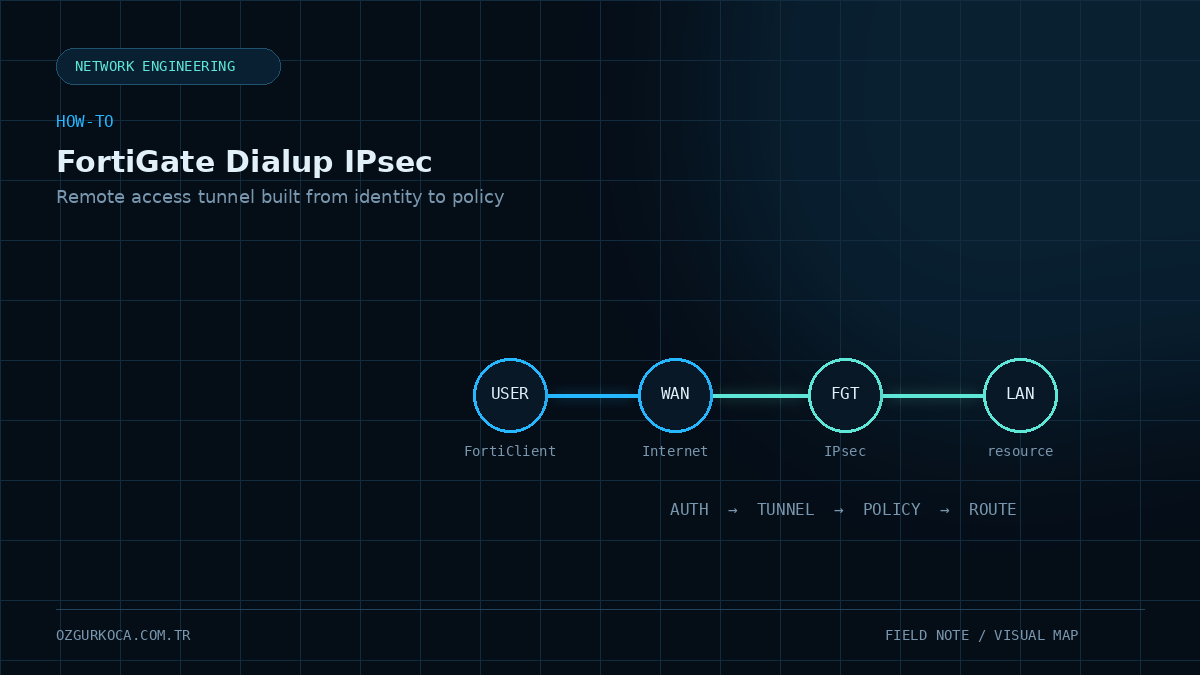
This guide is based on a wizard flow implemented on FortiOS 7.4.12. Environment-specific names, addresses, and user groups are replaced with example values, and sensitive fields in the screenshots are blurred.
01 / SCOPE
Scope
This article shows how to create a Dialup / Remote Access IPsec VPN for FortiClient users on the FortiGate side using the IPsec Wizard available in FortiOS 7.4.12.
The flow covered in this guide is:
FortiClient
    |
    | Internet
    v
FortiGate WAN
    |
    | Dialup IPsec VPN
    v
VPN Client Address Pool
    |
    v
Allowed Local NetworksThis record covers the wizard configuration on FortiGate. FortiClient profile-creation steps were not part of the original record, so they are not reproduced here.
02 / PREREQUISITES
Prerequisites
Before starting the wizard, define the values that will be used in your environment:
| Placeholder | Description |
|---|---|
<VPN_NAME> | Name of the Dialup VPN |
<WAN_INTERFACE> | Internet/WAN interface where FortiClient connections arrive |
<VPN_USER_GROUP> | User group allowed to access the VPN |
<PRE_SHARED_KEY> | Pre-shared key used for IPsec |
<LOCAL_INTERFACE> | Interface for the local network VPN users need to reach |
<LOCAL_ADDRESS> | Local network/address object reachable over the VPN |
<CLIENT_ADDRESS_RANGE> | IP pool assigned to FortiClient users |
<CLIENT_SUBNET_MASK> | Subnet mask used for the client address range |
03 / 1. OPEN THE IPSEC WIZARD
1. Open the IPsec Wizard
In the FortiGate GUI, navigate to:
VPN
  -> IPsec Wizard
On the VPN Setup screen, begin with the following choices:
- Name:
<VPN_NAME> - Template type:
Remote Access - Remote device type:
Client-based - Client:
FortiClient
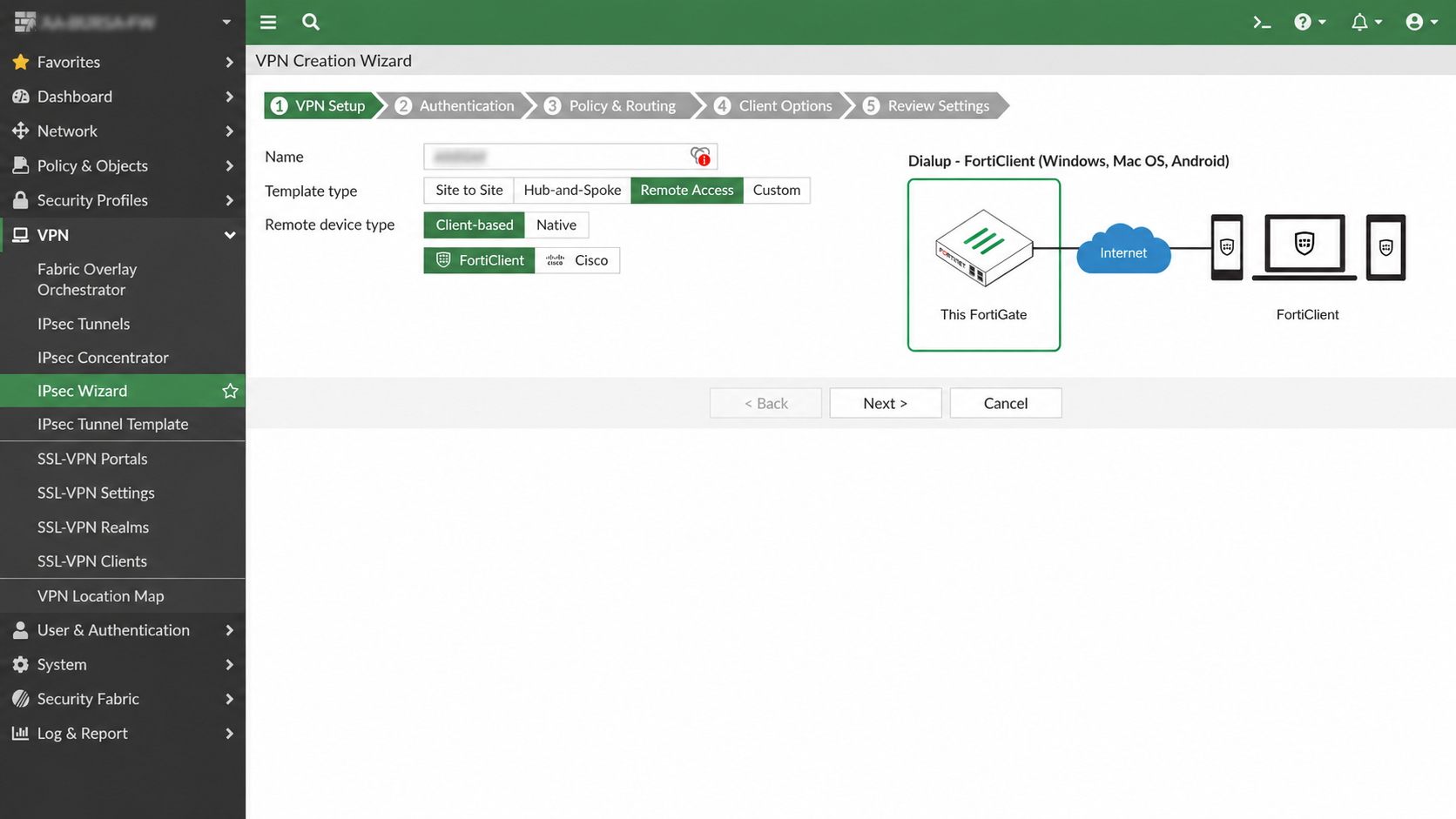
With these selections, the wizard prepares a Dialup IPsec Remote Access design in which FortiClient endpoints connect to the FortiGate over the Internet.
04 / 2. AUTHENTICATION SETTINGS
2. Authentication Settings
The next screen defines the listening interface and the authentication information used by the VPN.
The implementation captured in this guide uses:
- Incoming Interface:
<WAN_INTERFACE> - Authentication method:
Pre-shared Key - Pre-shared key:
<PRE_SHARED_KEY> - User Group:
<VPN_USER_GROUP>
You can think of the flow as:
FortiClient
    |
    v
<WAN_INTERFACE>
    |
    +-- Pre-shared Key validation
    |
    +-- <VPN_USER_GROUP> user authentication
    |
    v
IPsec VPNUse placeholder values for sensitive fields such as the pre-shared key and user group. Do not include real secrets in documentation.
05 / 3. POLICY & ROUTING
3. Policy & Routing
The Policy & Routing step defines which internal network the VPN user can reach and which IP range will be assigned to connected FortiClient endpoints.
The main fields on this screen are:
- Local interface:
<LOCAL_INTERFACE> - Local Address:
<LOCAL_ADDRESS> - Client Address Range:
<CLIENT_ADDRESS_RANGE> - Subnet Mask:
<CLIENT_SUBNET_MASK> - DNS Server:
Use System DNSorSpecifyas required - Enable IPv4 Split Tunnel
- Allow Endpoint Registration
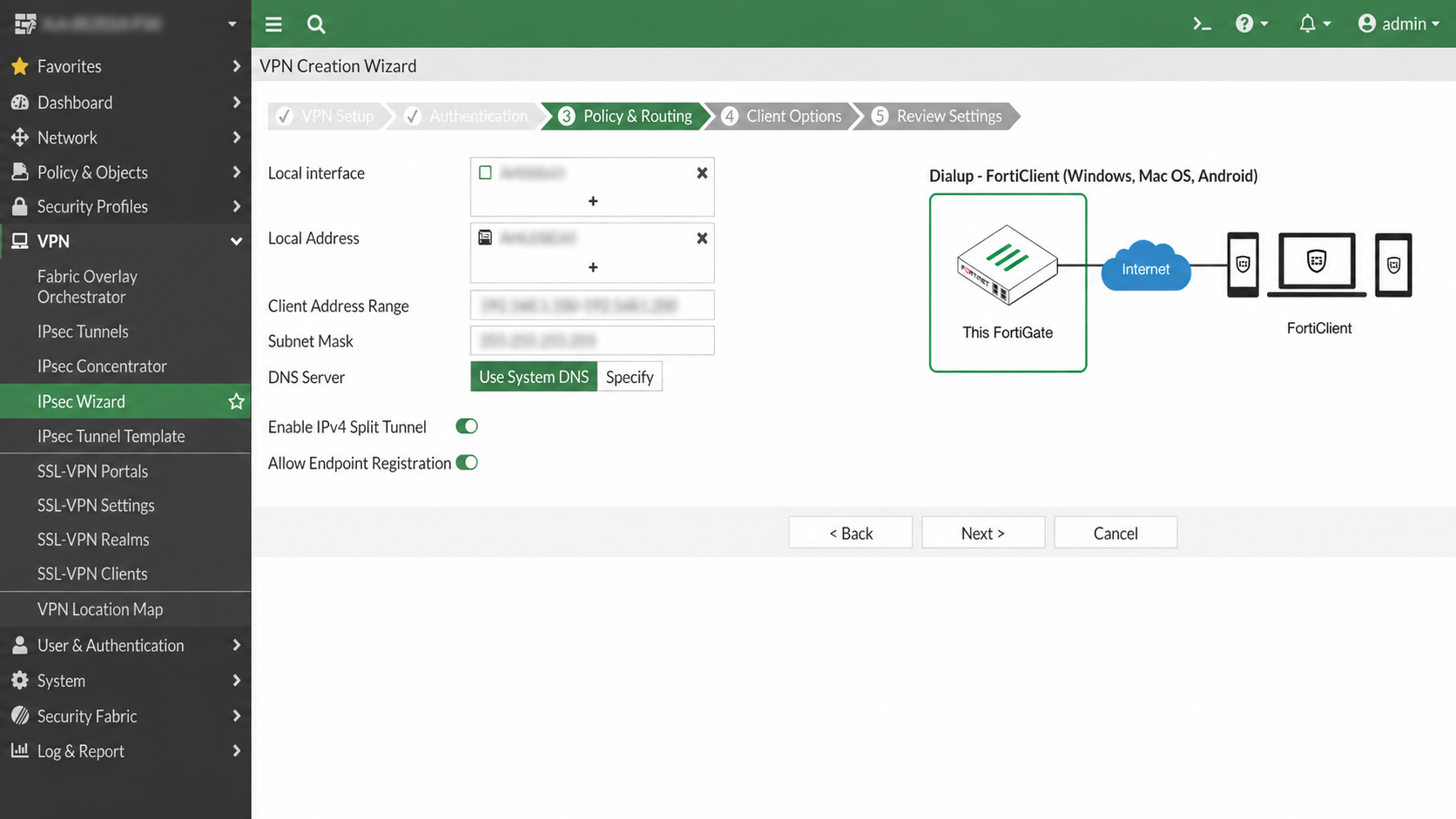
Local Interface and Local Address
Local interface represents the FortiGate interface connected to the internal network that VPN users must access.
Local Address defines the network or address object that VPN clients are allowed to reach.
VPN Client
    |
    v
Dialup IPsec Interface
    |
    v
<LOCAL_INTERFACE>
    |
    v
<LOCAL_ADDRESS>
Client Address Range
Client Address Range is the IP pool distributed to FortiClient endpoints after they establish the VPN connection.
The client address range shown in the screenshot is intentionally obscured.
Choose a VPN client address pool that does not overlap with existing local networks.
DNS Server
The captured configuration uses Use System DNS.
If required, select Specify to provide different DNS servers to VPN clients.
IPv4 Split Tunnel
In the captured configuration, Enable IPv4 Split Tunnel is enabled.
With split tunneling, the traffic sent through the VPN is determined by the local-access scope defined in the wizard. The design does not force all client Internet traffic through the tunnel.
06 / 4. CLIENT OPTIONS
4. Client Options
The Client Options screen contains settings that control FortiClient behavior.
In this implementation:
| Option | State |
|---|---|
| Save Password | Enabled |
| Auto Connect | Disabled |
| Always Up (Keep Alive) | Disabled |
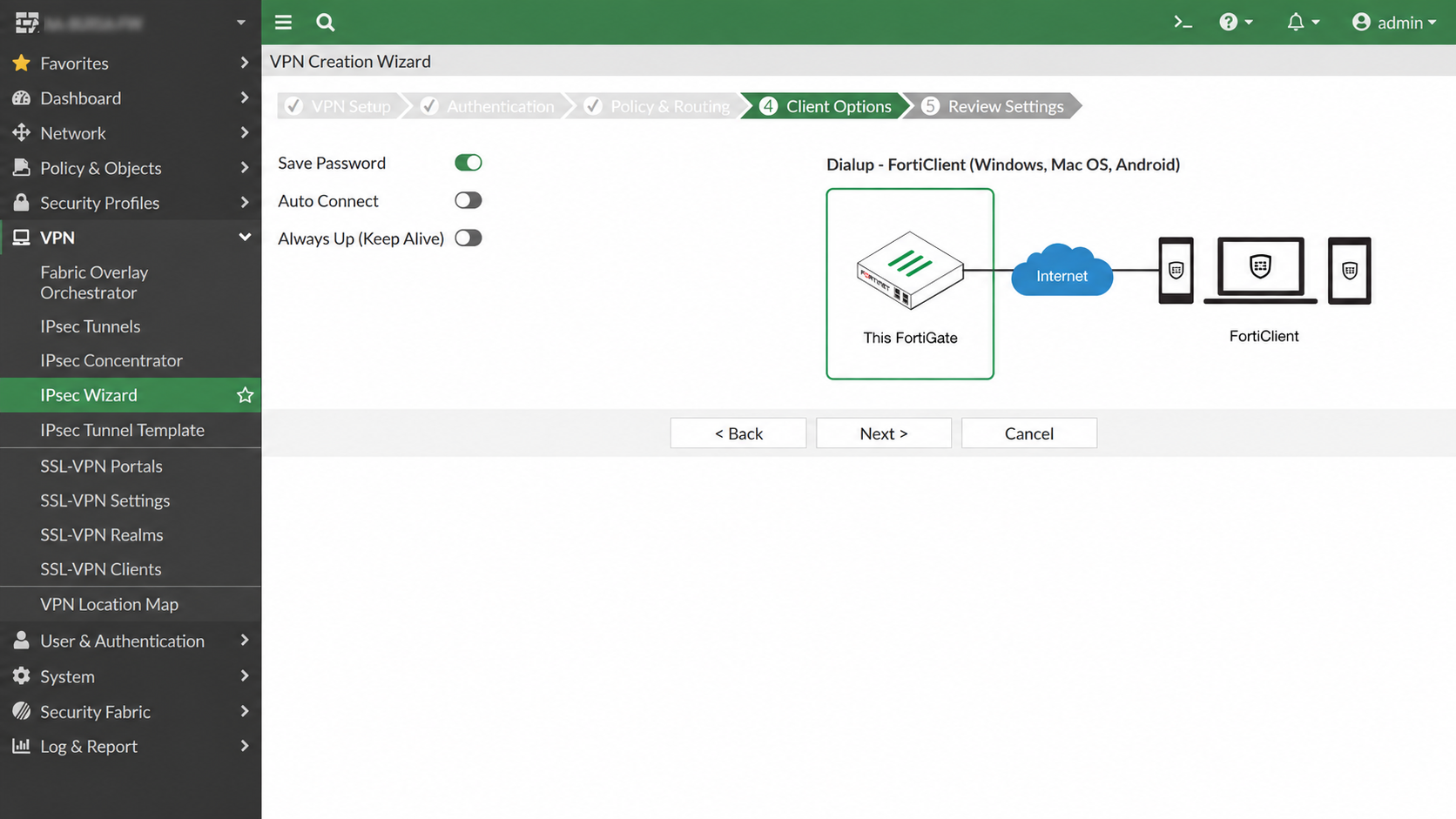
These values document the configuration that was used. Different environments may make different choices based on security policy and user-experience requirements.
07 / 5. REVIEW SETTINGS
5. Review Settings
The final Review Settings screen summarizes the objects that the wizard will create.
Typical object types shown here include:
- Split Tunnel Group
- Phase 1 Interface
- Phase 2 Interface
- Address
- Remote to Local Policies
- Endpoint Registration
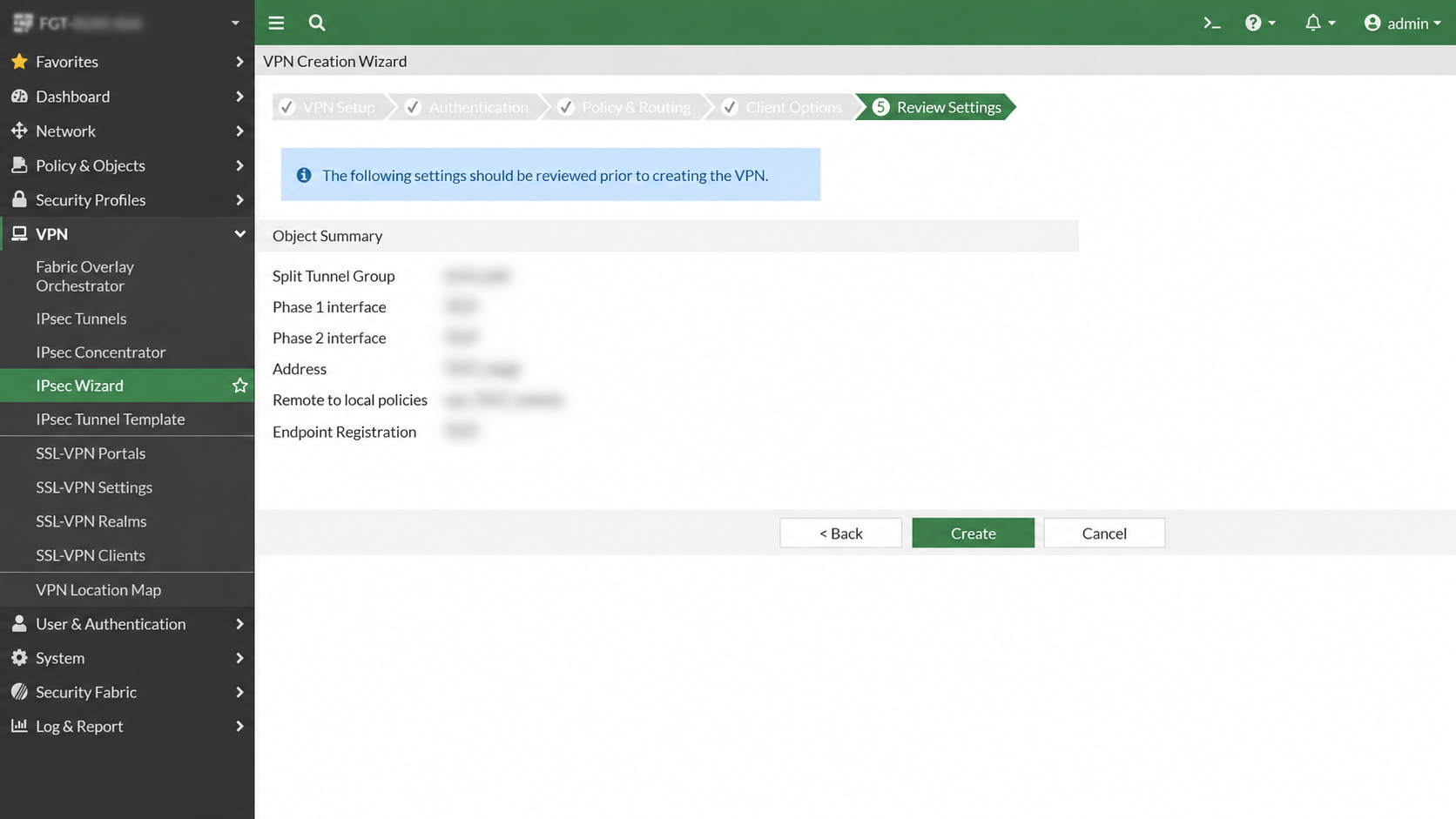
Object and policy names are obscured in the screenshot.
After reviewing the settings, select:
Createto create the configuration.
08 / WHAT THE WIZARD BUILDS
What the Wizard Builds
Completing the wizard creates multiple FortiGate components from a single set of selections.
VPN Setup
    |
    +--> Dialup Phase 1
    |
    +--> Phase 2
    |
    +--> Client Address Object / Pool
    |
    +--> Split Tunnel scope
    |
    +--> Remote-to-Local Firewall Policy
    |
    +--> User-group association
For that reason, after the wizard completes, do not verify only that the tunnel exists. Review the generated policies and objects to confirm that they match the intended security policy.
09 / POST-CONFIGURATION CHECKLIST
Post-Configuration Checklist
10 / SECURITY NOTES
Security Notes
The wizard speeds up deployment, but the resulting configuration still requires a final review.
Pay particular attention to:
- Scope of the user group allowed to use the VPN
- Address objects exposed on internal networks
- Firewall policy source/destination scope
- Authentication method
- Pre-shared key management
- Split-tunnel requirements
The screenshots in this guide document an implemented configuration. They do not imply that the same values should be used in every environment.
11 / CONCLUSION
Conclusion
On FortiOS 7.4.12, a Dialup Remote Access IPsec VPN for FortiClient can be created through VPN > IPsec Wizard in five steps:
1. VPN Setup
       |
2. Authentication
       |
3. Policy & Routing
       |
4. Client Options
       |
5. Review Settings
       |
     Create
This method creates the required Phase 1 / Phase 2 components, client addressing, and related access objects together through the wizard.
---
How-To ID: HT-002 Platform: FortiGate / FortiClient FortiOS: 7.4.12 Status: Implemented configuration
Was this article useful?
Leave a quick signal. Feedback is used to improve existing guides and decide what deserves deeper coverage.